Usecase: bypass TV streams with geo restrictions (on AppleTV)
I would always prefer so-called SmartDNS providers when it comes to bypass geo restrictions but in some cases this is not possible (e.g. Telekom VDSL). So I had to find an alternative for my Mom. Her AppleTV needs “to be” in Switzerland but her provider is Deutsche Telekom.
I stumbled upon a really cheap VPS provider up-network.ch and wanted to give it a try: set up a swiss VPS with Tailscale and use this as Exit Node in the tvOS Tailscale app. Spoiler: works perfectly fine, even with the cheapest VPS option (Basic S, 2,50 €/month).
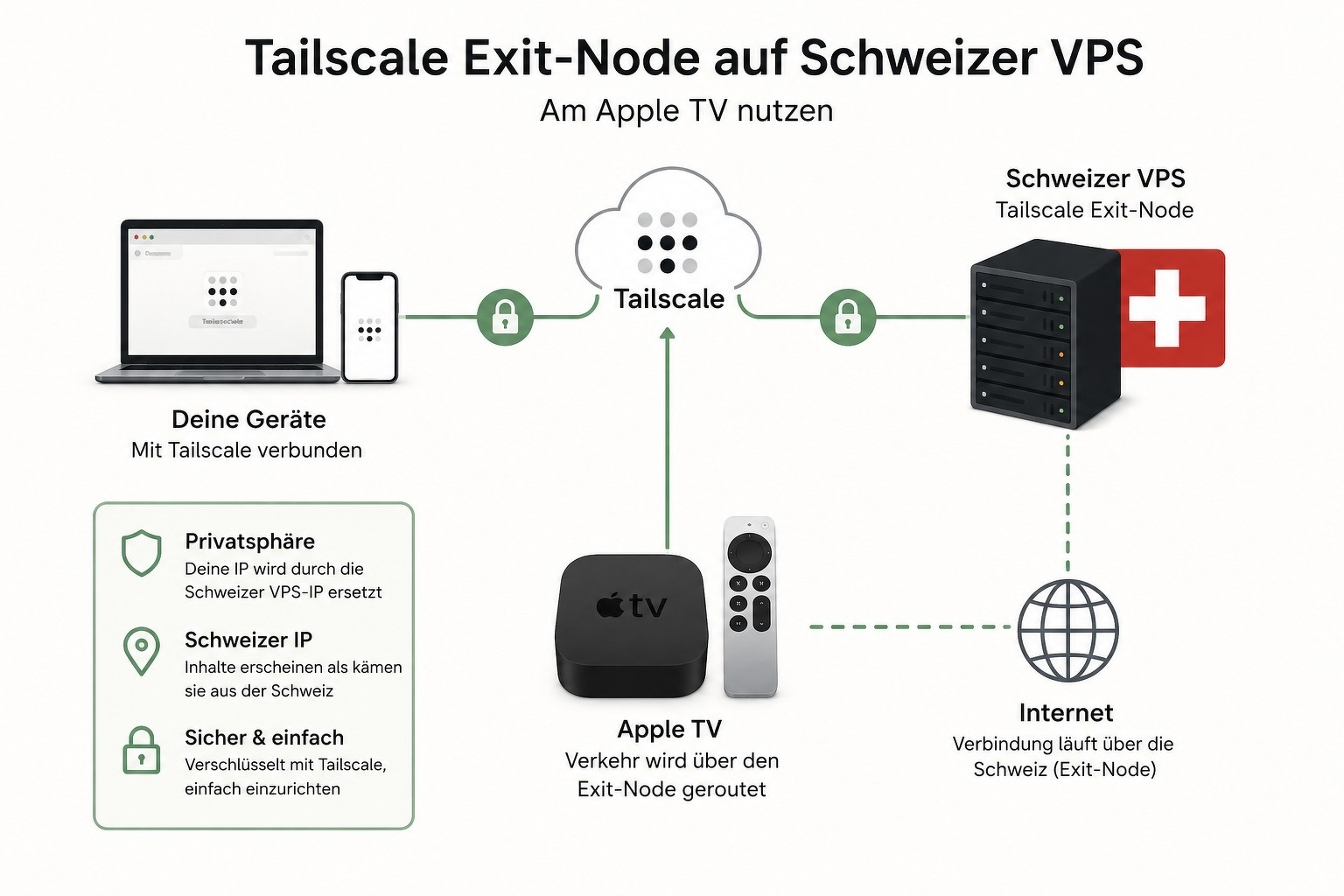
Here’s how to set it up, secured with Firewall and SSH pubkey authentication.
Step 1: Buy “VPS Basic S” and set it up with Ubuntu 24.04 (LTS)
Step 2: SSH into your server with your credentials, e.g. in macOS Terminal:
ssh root@{YOUR_PUBLIC_IPv4}
Step 3: Update Ubuntu
sudo apt update -y && sudo apt upgrade -y && sudo apt autoremove -y && sudo apt clean -y && sudo apt autoclean -y
Step 4: Setup Tailscale
# install
curl -fsSL https://tailscale.com/install.sh | sh

# start and authorize in Browser
sudo tailscale up

# set up ip forwarding
echo 'net.ipv4.ip_forward = 1' | sudo tee -a /etc/sysctl.conf
echo 'net.ipv6.conf.all.forwarding = 1' | sudo tee -a /etc/sysctl.conf
sudo sysctl -p

# start as exit node
sudo tailscale up --advertise-exit-node
Step 5: install and configure Uncomplicated Firewall (ufw)
sudo apt install ufw

# allow ssh to NOT unlock yourself
sudo ufw allow 22/tcp

# allow tailscale
sudo ufw allow 41641/udp

# allow outgoing connections and forbid incoming by default
sudo ufw default allow outgoing
sudo ufw default deny incoming

# allow tailscale incoming
sudo ufw allow in on tailscale0

# activate ufw
sudo ufw enable

# check status
sudo ufw status verbose
Step 6: disable SSH password authentication
# in /etc/ssh/sshd_config
PasswordAuthentication no
PermitRootLogin prohibit-password
PubkeyAuthentication yes
# restart ssh
sudo systemctl restart ssh
Step 7: Optional: deny ssh and use only Tailscale
ufw delete allow 22/tcp
That’s it. You can now use your VPS as Tailscale Exit-Node in any Tailscale client (like your iPhone or AppleTV).
